 Fancy
The complete guide
How to use Fancy Bot
Everything Fancy Bot does, one step at a time. No computer know-how needed beyond clicking and typing. Can't find something? Try the FAQ, ask the help bot (the ❓ button at the bottom right), or email [email protected].
1. What you need
- A computer with Google Chrome or Brave (Windows, Mac, Linux or Chromebook). Chrome needs to be version 126 or newer, which any up-to-date browser is. Fancy Bot doesn't work on phones, tablets, Firefox or Safari.
- A Fancy Bot account. The free plan comes with 20,000 characters a month. See Pricing.
- The sites it works on: claude.ai, grok.com and gemini.google.com for AI answers; x.com (Twitter), facebook.com and instagram.com for Crib notes and the other post tools. You sign in to those sites with your own accounts, as usual.
Nothing else to install. Fancy Bot's voices and rewrites run on our servers, so there's no program to keep open on your computer.
2. Install from the Chrome Web Store
- Open the Fancy Bot page on the Chrome Web Store (the link goes here as soon as the listing is published).
- Click Add to Chrome. In Brave the button says Add to Brave; Brave uses the same Chrome Web Store.
- Click Add extension in the box that pops up.
- The Fancy Bot settings page opens by itself. Keep it open for the next step.
- Pin it (recommended): click the puzzle-piece icon next to the address bar, then the pin next to Fancy Bot. Clicking the Fancy Bot icon later shows or hides the character on the page.
If you already had Claude, Grok, Gemini, X, Facebook or Instagram open, refresh those tabs so Fancy Bot can appear on them.
3. First-time setup and your account
- Get your account. Sign-up opens on getfancybot.com with the plans (see Pricing). When you sign up, you get a personal access code that starts with
vk_. Treat it like a password and don't share it. - On the Fancy Bot settings page, find Connection. Paste your access code into Session token. Your welcome email tells you exactly what to paste; if it also gives a server address, paste that into Middleware URL.
- Click Save. If your browser asks to let Fancy Bot connect to the Fancy Bot server, click Allow.
- You should see Saved. followed by how many characters you have left this month and your plan. If you see a different message, see Troubleshooting.
About you at the top of the settings page is optional. See Your profile and language. To open the settings page again later, click 👤 on the widget, or press and hold the character and choose Settings.
4. The widget and moving it
On a supported site, the character appears in a small floating box called the widget, near the bottom-right corner. It starts small (size S): just the character and a status line. Make it bigger to see all the buttons (press and hold the character, then choose M or L).
- Move it: drag the widget by its top bar. It remembers where you put it. (Dragging the character itself doesn't move it; that's where the gestures live.)
- Colored dot in the top bar: green means connected and ready, orange means working, red means a problem (read the status line at the bottom).
- ? opens How Fancy Bot works, a short built-in help menu.
- 👤 opens the settings page.
- ▾ / ▸ collapses the widget to its top bar, or opens it again.
- The status line at the bottom says what's happening, like "Thinking in character...", who's talking, or how many characters you have left this month.
On grok.com, Fancy Bot can sit where Grok's own animated companion usually is.
5. Play, pause and stop (■)
| Button | What it does |
|---|---|
| ▶ / ❚❚ | Play or pause. If nothing has played yet, it reads the latest answer. |
| ↻ | Replay the last reading from the start. |
| ■ | Stop. Stops the current reading right away. |
| ❝ | Read the text you've selected with your mouse, or the latest answer if nothing is selected. Handy for older answers, or if Fancy Bot ever misses one. |
7. Listening to AI answers
- Open claude.ai, grok.com or gemini.google.com and sign in as usual.
- Click anywhere on the page once. Browsers only allow sound after you've clicked or typed on a page.
- Ask the AI a question, for example: "What does it mean when my doctor says my blood pressure is 140 over 90?"
- When the answer comes in, your character restates it in their own words, at your reading level, and reads it out loud. At size M or L the words show in the caption box.
Fancy Bot only reads new answers. To hear an older one, select its text with your mouse and press ❝. Code samples in an answer are skipped. Very long answers are cut off with "Message too long to read aloud; the rest was skipped." Select the part you want and press ❝.
8. Reading level
The Reading level slider on the Listen tab works with every character. It starts at 2 (Plain).
| Level | Sounds like |
|---|---|
| 1 Super simple | Elementary-school words. Very short sentences, every technical word explained, one simple comparison, and a one-sentence bottom line. |
| 2 Plain (default) | Short sentences and common words. Jargon explained the first time. The most important part first. |
| 3 Everyday | Natural, high-school-level conversation. Unusual words briefly explained. |
| 4 Detailed | College-level: more precise words and fuller explanations, with technical terms when they help. |
| 5 Expert | PhD-level vocabulary and nuance, still easy to follow when spoken. |
The facts never change. At every level, numbers, doses, amounts, dates, steps, warnings and safety advice are kept exactly as the AI said them, and "see a doctor" or "call emergency services" stays in. Fancy Bot never adds medical, legal or money advice of its own. The reading level is about plain language, not about how smart anyone is.
9. Choosing a character
Pick a character from the Character list on the Listen tab, or press and hold the character and tap a name under Characters. Auto (match the topic) lets Fancy Bot pick one based on what the answer is about; the status line says "auto-picked" when it does.
 Big Sal
Wise Mentor. The default. A warm, seriously smart old friend who cuts through jargon. Great for doctor, legal and insurance talk. Old Oakley
Spirit Guide. An ancient oak-tree spirit: calm, deep and poetic. Wonderful for big ideas and paraphrases. Big Play Ray
Sports Announcer. Everything is a big play. The starting comedic voice for crib notes. Elias Stillwater
Philosopher. Grand words, metaphors and deep thoughts about meaning. Rusty Peters
Reformed Troublemaker. Starts with a grumble, always talks himself into the kind, honest choice. Jaden
Town Kid. Friendly, curious, short upbeat sentences. Jack Midnight
Late-Night Storyteller. Smooth late-night-radio storytelling with a little mystery.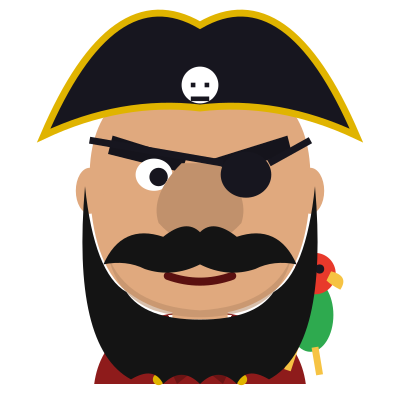 The Pirate
Friendly Pirate. A family-film captain: "Ahoy, matey!"
More characters are in the list too, including Dash Dawson (the town's accidental genius, who talks very fast), Captain Ada Quill, Granny Marigold, Professor Pip and Sir Reginald Ledger. A few characters are still getting their own drawing or voice; until then they appear as a colorful stand-in figure or borrow a backup voice.
The Comic characters
The town's comics are made for the Writers' Room and crib notes, and you can pick them anywhere:
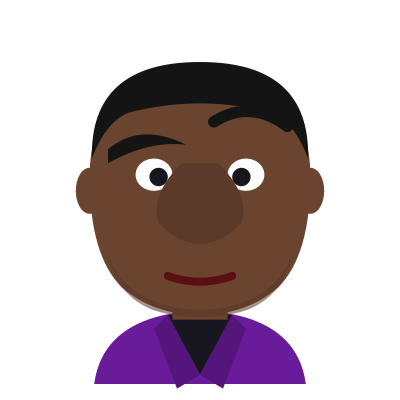 Comic Reggie
Stand-up Comic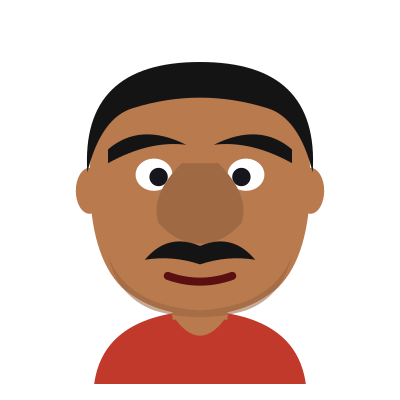 Comic Chuy
Family Storyteller Comic Comic Marty
Observational Comic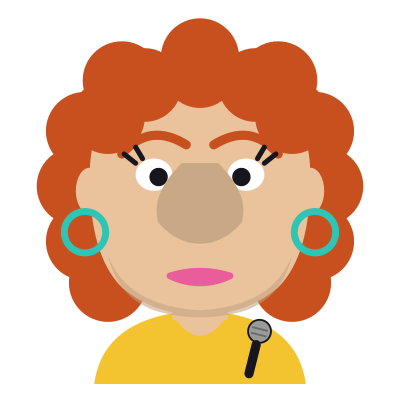 Comic Winnie
Improv Comic Comic Priya
Kid Word-Nerd Comic
Every character is family-friendly: no swearing, and kindness, honesty and fairness come first.
10. Speaking styles and add-ons
Under the reading level on the Listen tab. They work with any character.
Speaking style (pick one). It changes how things are said, never the facts:
- Character's own (default): the character talks in their own normal way.
- Slow & patient: unhurried, with pauses, and the key point repeated at the end. The voice slows down too.
- British English, Old-time storyteller, Hype announcer, Rapid-fire genius (races from idea to idea, then sums up in one line; the voice speeds up) and Friendly pirate.
Add-ons (tick to turn on): Humor adds light, wholesome jokes; Philosophy adds one short thought about a bigger life lesson; Paraphrase gives a short retelling (usually 3 to 6 sentences) instead of the whole answer. Paraphrase also uses less of your monthly allowance.
11. Town Panel
Instead of one character, a group can share an answer, like a little town meeting.
- On the Listen tab, tick Town panel.
- Tick the characters you want. The core four start ticked. You need at least 2, and up to 6 take part.
- Their faces appear in a strip along the top of the screen. The answer is split into parts, each part goes to the character whose interests fit it best, and they take turns in their own voices. The speaker is highlighted.
- Tap a face in the strip to make that character your main character.
Town Panel is for normal read-alouds. The Ask tab tools use just your main character. Untick Town panel to go back to one character.
12. Listen, Ask and Post tabs
- Listen (every site): character, reading level, speaking style and add-ons, Town panel, Auto-read replies, and the 🎬 video button.
- Ask (on Claude, Grok and Gemini): tools for the last AI answer. See The Ask tab.
- Post (on X, Facebook and Instagram, in place of Ask): Crib notes, Draft reply, Writers' Room and What's hot.
13. Auto-read replies
When Auto-read replies is ticked on the Listen tab (it is at the start), every new AI answer is read automatically. Untick it if you'd rather press ▶ or ❝ only when you want to listen. The same switch is on the settings page as Auto-read new replies. Fewer automatic readings also means your allowance lasts longer.
14. The Ask tab: key points, follow-ups, Expound
All of these work on the last AI answer on the page:
- Key points: just the main points, as a short numbered run.
- Paraphrase: a plain-words retelling. If you entered your name, the character talks to you: "Sam, basically what Claude is telling you is..."
- 🌳 Paraphrase with Oakley: the same, told by Old Oakley.
- Ask: type a follow-up question in the box and press Ask. The character answers about that answer, briefly.
- Expound: goes deeper than the answer did. It may look things up on the web, and links to its sources appear under the caption.
15. Crib notes on X, Facebook and Instagram
- Move your mouse over a post (or tap it). A 🎭 Crib notes button appears on the post, near the top right (or just above the like and reply buttons when the top is crowded).
- Click it. Your comedic voice sums up the post in 2 or 3 short, witty lines (under 280 characters), keeping the key facts.
Jokes are about ideas, never about the person, and serious or sad posts get a kind summary with no jokes. You can also press 🎭 Crib notes on the widget's Post tab; it uses the post that's most visible on your screen.
Comedic voice on the Post tab picks who writes crib notes and replies. It starts as Big Play Ray; choose any character, or Same as my character.
When it's ready you get three buttons: 📋 Copy text, 🎬 Make video and ↩ Open reply box (copies the text and opens the site's own reply box for that post). Then you paste it, attach the video if you made one, and press the site's post button yourself, if you decide to. Fancy Bot never posts for you.
16. Draft reply
On the Post tab, press 💬 Draft reply. Your comedic voice writes a reply you could post under the post: 1 to 3 sentences, under 280 characters. To make a particular point, type it in Your angle for the reply (optional) first. Always read it before you use it; then Copy, Make video or Open reply box, and post it yourself.
17. Writers' Room
- On the Post tab, under 🎬 Writers' room scene, tick 2 to 4 characters for the cast. The core four start ticked. The Comic characters (Reggie, Chuy, Marty, Winnie and Priya) are great here.
- Pick a Director (Big Sal to start).
- Press 🎬 Writers' room scene. Each cast member pitches a line in their own voice (one sets up the premise, one overthinks a tiny detail, one offers a left-field fix, one lands the clean summary), and the director turns the best into a short 4 to 8 line scene.
- Each line is spoken by its own character, with the cast along the top of the screen. Press 🎬 Make video for a video with the whole cast.
The humor is original and clean: no copying of TV shows or comedians, no swearing, and no jokes about the person who posted. If the AI is busy, a cast member may sit one out; the status line tells you, and you can try again in a minute.
18. Make video
- Let Fancy Bot read something all the way through (an answer, crib notes, a reply or a scene).
- Press 🎬 Make video on the Post tab, or 🎬 Meme on the Listen tab.
- A progress bar appears. The video is made in real time, so a 30-second reading takes about 30 seconds. Keep the tab open and in front while it works.
- The MP4 lands in your Downloads folder, named after the character.
The video is square (720 × 720, good for most social apps) and shows the character with a moving mouth, their name and captions. Scenes show the whole cast with the speaker highlighted. If your browser can't make MP4, Fancy Bot saves a WebM video and says so. Making a video re-uses the voice you already heard, so it doesn't use any extra allowance.
19. What's hot on this page
On the Post tab, tick 🔥 What's hot on this page to rank the posts already loaded on your screen by the likes, reposts, replies and views shown on them and by shared topics. Tap one to make it the post for Crib notes, Draft reply or a scene. Press ↻ to refresh after scrolling. It only looks at the page you're viewing.
20. The helper (double-tap)
Double-tap the character (or choose 💬 Assistant in the menu) and type a request, then press Ask. Where your browser supports it, the 🎤 button lets you say it instead. Try: "switch to Old Oakley", "talk slower", "simpler please", "more detail", "make it funny", "no jokes", "paraphrase", "bigger", "mute", or "who would explain this like a coach?"
21. Your profile and language
On the settings page, About you is optional and stays in your browser:
- Your name: characters use it now and then.
- About me: your job, skills and interests, so characters pick examples from your world.
- Age group: Kid, Teen, Adult, Senior or Prefer not to say.
- Language characters speak: starts as the same language as your browser. Pick another and the characters answer in it.
Click Save after any change. The widget's buttons are in English or Spanish, depending on your browser's language.
22. Your monthly allowance
- What counts: the characters (letters, spaces and punctuation) your character speaks aloud. Making a video doesn't count again.
- How much: the free plan includes 20,000 characters a month and the $10 plan includes 150,000. See what that gets you.
- Check what's left: the status line shows "N characters left this month" after a reading, and the settings page shows it when you click Save.
- When it runs out: the reading stops and the widget says "Monthly character quota reached." Nothing is charged automatically. You can wait for the new month, upgrade to the $10 plan, or add a top-up once top-ups open.
- When it resets: on the 1st of each month (midnight UTC, which is the evening of the last day of the month in US time zones). Unused characters don't roll over.
- Fair-use limits on posts: to keep Fancy Bot a personal helper, crib notes, replies and scenes are limited to 6 a minute and 120 a day. Go faster and you'll see "Slow down a little: try again in ... s."
23. Hiding, muting and removing Fancy Bot
| To... | Do this |
|---|---|
| Hide the character | Click the Fancy Bot icon in the toolbar. Click again to bring it back. |
| Silence it | Press and hold the character, tap Mute. |
| Stop the current reading | Press ■. |
| Stop automatic reading | Untick Auto-read replies. |
| Get it out of the way | Drag it by the top bar, make it size S, or collapse it with ▾. |
| Remove Fancy Bot | Right-click the Fancy Bot icon and choose Remove from Chrome (or Brave), or go to chrome://extensions (brave://extensions) and click Remove. |
24. Troubleshooting
The character isn't showing
- Fancy Bot only appears on claude.ai, grok.com, gemini.google.com, x.com, facebook.com and instagram.com.
- Click the Fancy Bot icon in the toolbar; it may be hidden.
- Refresh the page. This is needed after installing or updating.
- On
chrome://extensions(orbrave://extensions), check that Fancy Bot is switched on. - It might be small or tucked in a corner. It starts near the bottom right.
No sound
- Click the page once. If the status line says "Press ▶ to start audio (the browser blocked autoplay)", press ▶.
- Press and hold the character; if the menu shows Unmute, tap it.
- Check your computer's volume and that the tab isn't muted (right-click the tab).
- "This site blocked audio playback; captions only." means the page blocked sound. Refresh and try again.
It didn't read an answer
- Check that Auto-read replies is ticked.
- AI sites change their design now and then. Select the answer's text and press ❝. That always works.
Sign-in messages
- "Add your session token in the extension options." or "Paste your token first (it starts with vk_).": open settings (👤), paste your access code into Session token and click Save.
- "Session token rejected." or "the server does not recognize this token": copy the code again from your welcome email (no spaces) and click Save. Still stuck? Email [email protected].
- A red dot or "can't reach the server": check your internet connection and refresh the page. If it keeps happening, email us.
Other messages
| "Monthly character quota reached." | You've used this month's allowance. See Your monthly allowance. |
| "Slow down a little: try again in ... s." | The fair-use limit on posts. Wait a few seconds. |
| "No post found. Scroll a post into view or tap 🎭 on one." | Scroll so a post is on screen, or use the 🎭 button on the post. |
| "Could not find the reply button on this post." | The text was still copied. Open the reply box yourself and paste. |
| "Play a reply first, then export it." | Let Fancy Bot read something before pressing 🎬. |
Still stuck? Email [email protected] with what you were doing and what the status line said. A screenshot helps.